A Simple but Great Way to Organize your Projects
When you start working with CAESES®, you will notice that the project with all its objects can get quite messy after a while. Typically, you create scopes (in CAESES®, these are some kind of directories) to organize things a bit better. We also discuss this issue in our introduction training since this looks like a trivial thing, but… having a good and logical project structure helps you in tracking errors and warnings, and it also saves a lot of time and decides about whether you will finally enjoy using CAESES® or not…
Object Tree: A Typical Structure
Here is a screenshot of a typical project structure that we have been also using for a long time:
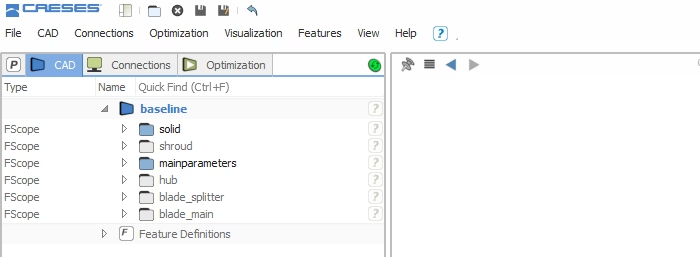
However, at FRIENDSHIP SYSTEMS, we have experienced during the last years that even such a structure with nice names might not be ideal when your project contains warnings or errors. The dependencies among objects is usually not super trivial, and finding the object that initially causes all the problems can be a tedious task. For a better support, CAESES® adds error icons to the scopes if any of the objects are invalid for some reasons:
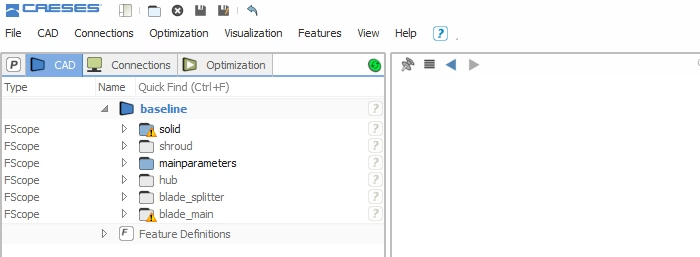
As you can see, the scopes “solid” and “blade_main” contain errors which basically indicate that something goes wrong — and we want to know which objects are invalid. In complex projects, it is not easy to find out where to start with digging into the problem. Most of the times, you have some kind of dependency sequence and you are interested in finding the object that causes the initial problem.
Our New Structure
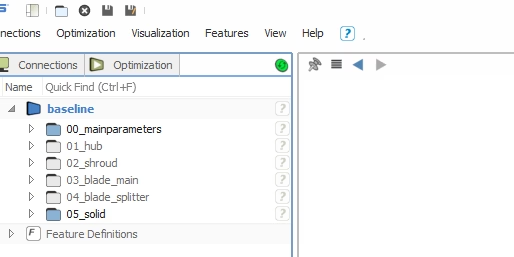
We have iterated quite a bit to find a good way of structuring our complex projects, and we finally came up with a very simple concept that follows the chronological creation plus a logical grouping of things that belong together. The following screenshot shows the same project with the new structure:
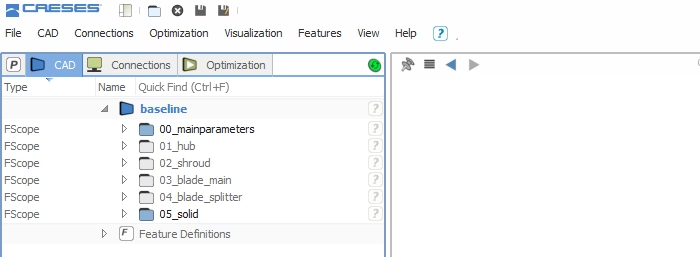
Actually, while you are setting up the model, you simply give indexed names to the scopes, such as “00_mainparameters”, “01_hub” and so on. Since the object tree sorts the objects (and hence the scopes) by their names, you’ll receive a chronological order of everything, combined with a grouping that makes sense to you. For instance, all main parameters go into a separate scope, as well as all objects that belong to the hub part of the model. This approach now greatly supports you in tracking errors in your project. See the screenshot below:
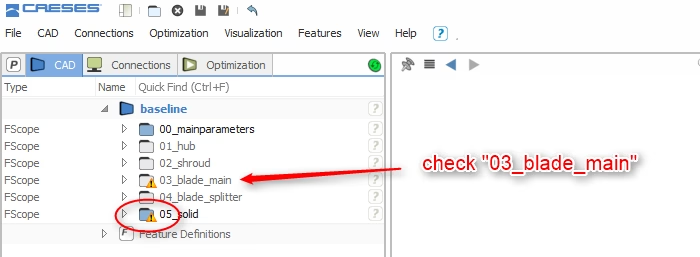
Both the main blade and the solid part show errors. Since you have organized it in a sequence-like manner, you would now first check the main blade scope for the invalid objects. Fixing these objects leads in most cases to valid objects that are downstream of the first error (in our case the solid scope). In this example, a parameter within the main blade scope was not valid, which automatically lead to invalid objects in the solid scope.
Often things are far more complex than in this example, and you will really appreciate that you have followed such a simple but helpful concept for your project organization.
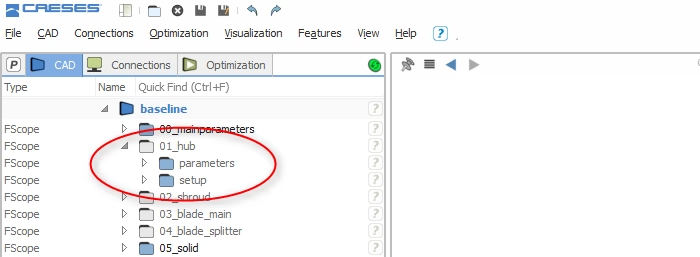
BTW: Some of our colleagues also organize sub-scopes in a similar manner. We’ve found out that this is again helpful if you have more than 2 sub-scopes. In our example, it possibly does not introduce more clarity since at some point you would somehow visually mix up the numbers at a first view, e.g. “00_hub|00_parameters” simply shows an overhead of numbers. So having no numbers for sub-scopes might be the better choice if you have just a few of them, as shown in the last screenshot: